<?xml version="1.0" encoding="utf-8"?><feed xmlns="http://www.w3.org/2005/Atom" ><generator uri="https://jekyllrb.com/" version="4.3.3">Jekyll</generator><link href="http://vtlearn.de/feed.xml" rel="self" type="application/atom+xml" /><link href="http://vtlearn.de/" rel="alternate" type="text/html" /><updated>2024-07-11T18:21:31+02:00</updated><id>http://vtlearn.de/feed.xml</id><title type="html">vtlearn.de</title><subtitle>This site is the homepage of Martin Kolb, teacher and independent software developer.
</subtitle><entry><title type="html">Building a macOS app with Rubymotion - Part 1: Getting started with Rubymotion</title><link href="http://vtlearn.de/rubymotion/2020/04/27/Building-a-macos-gui-with-Rubymotion.html" rel="alternate" type="text/html" title="Building a macOS app with Rubymotion - Part 1: Getting started with Rubymotion" /><published>2020-04-27T11:40:12+02:00</published><updated>2020-04-27T11:40:12+02:00</updated><id>http://vtlearn.de/rubymotion/2020/04/27/Building-a-macos-gui-with-Rubymotion</id><content type="html" xml:base="http://vtlearn.de/rubymotion/2020/04/27/Building-a-macos-gui-with-Rubymotion.html"><![CDATA[<p>An article on getting started with macOS development with RubyMotion. It shows you how to initialize your first project and translate between Objective-C and RubyMotion.</p>

<p>This article is part of a series with the following topics (if there is no link provided the articles will be published at a future date):</p>

<ul>
  <li><a href="/site/rubymotion/2020/04/27/Building-a-macos-gui-with-Rubymotion.html">Getting started with Rubymotion</a></li>
  <li>Building a basic GUI</li>
  <li>Writing tests</li>
  <li>Building a NSTableView GUI in Rubymotion</li>
  <li>Using gems and Cocoapods</li>
  <li><a href="/site/rubymotion/2019/03/24/Vendoring-C-libraries-with-Rubymotion.html">Vendoring C libraries with Rubymotion</a></li>
</ul>

<h2 id="initializing-a-project">Initializing a project</h2>
<p>Before we start with our first project you will need to download and install Rubymotion <a href="http://www.rubymotion.com/download/">from here</a>. The download is a zipped installer. Unzip it and double click to install. Also make sure that you have got the current version of XCode installed <a href="http://www.rubymotion.com/developers/guides/manuals/cocoa/getting-started/install-xcode.html">as described here</a>. Lastly you will need to have a text editor installed on your computer. My personal choice is <a href="https://macromates.com">TextMate</a> which you can download and use for free.</p>

<p>After installation is complete open the Terminal application. Let’s start by creating a new project:</p>

<div class="language-bash highlighter-rouge"><div class="highlight"><pre class="highlight"><code><span class="nv">$ </span><span class="nb">mkdir</span> ~/Documents/rubymotion-dev
<span class="nv">$ </span><span class="nb">cd</span> ~/Documents/rubymotion-dev
<span class="nv">$ </span>motion create <span class="nt">--template</span><span class="o">=</span>osx HelloRM
</code></pre></div></div>

<p>This will output something like:</p>

<div class="language-plaintext highlighter-rouge"><div class="highlight"><pre class="highlight"><code>[!] You may want to run `motion repo` if it's been a while since you've updated templates.
    Create HelloRM
    Create HelloRM/.gitignore
    Create HelloRM/Gemfile
    Create HelloRM/README.md
    Create HelloRM/Rakefile
    Create HelloRM/app/app_delegate.rb
    Create HelloRM/app/menu.rb
    Create HelloRM/resources/Assets.xcassets/AppIcon.appiconset/1024x1024.png
    Create HelloRM/resources/Assets.xcassets/AppIcon.appiconset/Contents.json
    Create HelloRM/resources/Assets.xcassets/AppIcon.appiconset/Icon_128x128.png
    Create HelloRM/resources/Assets.xcassets/AppIcon.appiconset/Icon_128x128@2x.png
    Create HelloRM/resources/Assets.xcassets/AppIcon.appiconset/Icon_16x16.png
    Create HelloRM/resources/Assets.xcassets/AppIcon.appiconset/Icon_16x16@2x.png
    Create HelloRM/resources/Assets.xcassets/AppIcon.appiconset/Icon_256x256.png
    Create HelloRM/resources/Assets.xcassets/AppIcon.appiconset/Icon_256x256@2x.png
    Create HelloRM/resources/Assets.xcassets/AppIcon.appiconset/Icon_32x32.png
    Create HelloRM/resources/Assets.xcassets/AppIcon.appiconset/Icon_32x32@2x.png
    Create HelloRM/resources/Assets.xcassets/AppIcon.appiconset/Icon_512x512.png
    Create HelloRM/resources/Assets.xcassets/AppIcon.appiconset/Icon_512x512@2x.png
    Create HelloRM/resources/Assets.xcassets/Contents.json
    Create HelloRM/resources/Credits.rtf
    Create HelloRM/spec/main_spec.rb
</code></pre></div></div>

<div class="aside">
  <h3 id="working-with-the-terminal">Working with the terminal</h3>
  <p>When you are working with Rubymotion you will have to be familiar with the Terminal. If you are not, you will find lots of tutorials on the web to get you started:</p>

  <ul>
    <li><a href="https://www.youtube.com/watch?v=aKRYQsKR46I">Absolute BEGINNER Guide to the Mac OS Terminal (Video)</a></li>
    <li><a href="https://macadmins.psu.edu/wp-content/uploads/sites/24696/2014/07/Unix.PSU_.pdf">UNIX: Working the Command Line in OS X (PDF)</a></li>
    <li><a href="http://www.nparikh.org/notes/TerminalBasics.pdf">Mac OS X Terminal Basics v2.1.2 by Neal Parikh (PDF)</a></li>
    <li><a href="https://www.makeuseof.com/tag/mac-terminal-commands-cheat-sheet/">The Mac Terminal Commands Cheat Sheet</a></li>
  </ul>

</div>

<h2 id="run-our-app-for-the-first-time">Run our app for the first time</h2>
<p>Before we analyze the project folder a little bit more, we are going to build and run the app for the first time:</p>

<div class="language-bash highlighter-rouge"><div class="highlight"><pre class="highlight"><code><span class="nv">$ </span>bundle        <span class="c"># install dependencies</span>
<span class="nv">$ </span>rake          <span class="c"># rake means: build and run our application</span>
</code></pre></div></div>

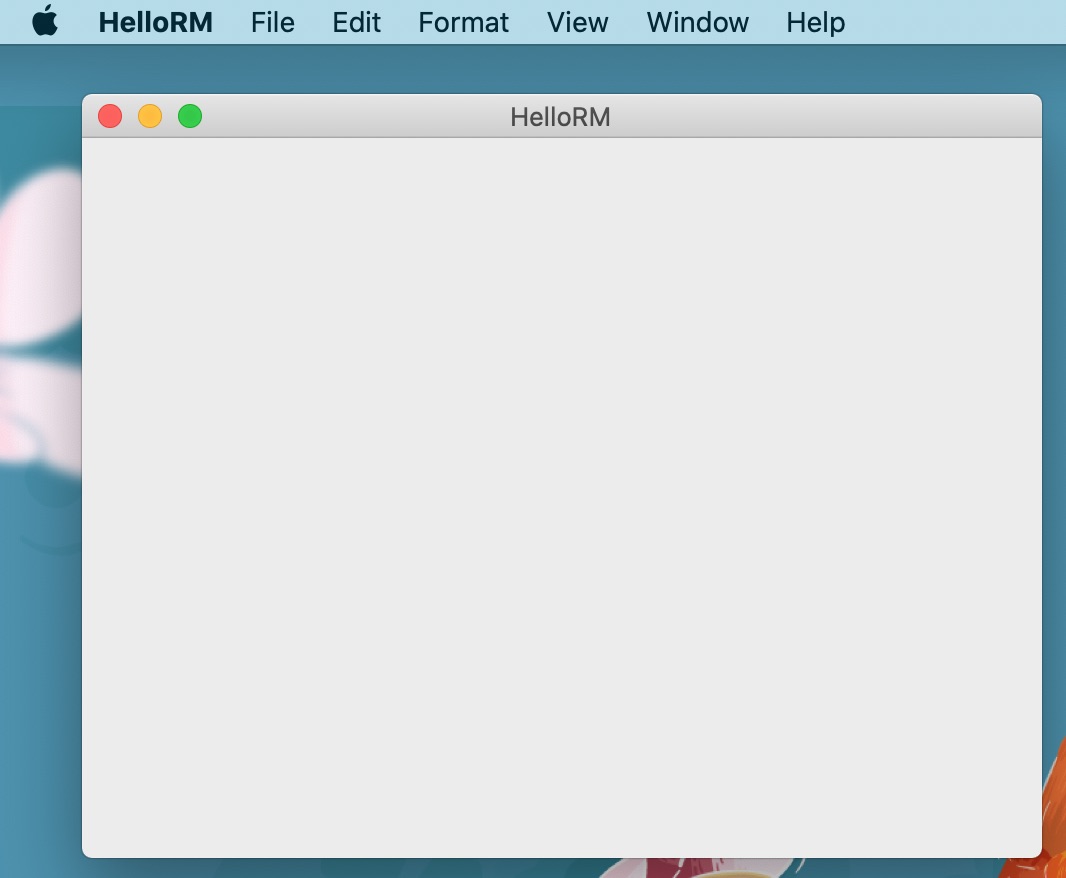
<p>This should give you some output on the command line and the our new app will show up with a menu bar and a window:</p>

<p><img src="/assets/images/rm_osx_tutorial/01_screenshot_first_run.jpg" alt="Screenshot of our first app running" /></p>

<p>Hooray you have just built your first macOS application! Now let’s take a closer look at our project folder…</p>

<h2 id="the-project-folder">The project folder</h2>
<p>After setting up your Rubymotion project your project folder will look like this</p>

<div class="language-plaintext highlighter-rouge"><div class="highlight"><pre class="highlight"><code>├── Gemfile
├── README.md
├── Rakefile
├── app
│   ├── app_delegate.rb
│   └── menu.rb
├── resources
│   ├── Assets.xcassets
│   │   ├── AppIcon.appiconset
│   │   │   ├── 1024x1024.png
│   │   │   ├── Contents.json
│   │   │   ├── Icon_128x128.png
│   │   │   ├── Icon_128x128@2x.png
│   │   │   ├── Icon_16x16.png
│   │   │   ├── Icon_16x16@2x.png
│   │   │   ├── Icon_256x256.png
│   │   │   ├── Icon_256x256@2x.png
│   │   │   ├── Icon_32x32.png
│   │   │   ├── Icon_32x32@2x.png
│   │   │   ├── Icon_512x512.png
│   │   │   └── Icon_512x512@2x.png
│   │   └── Contents.json
│   └── Credits.rtf
└── spec
    └── main_spec.rb
5 directories, 20 files
</code></pre></div></div>

<p>Let’s quickly have a look at these files and folders:</p>

<ol>
  <li><strong>Gemfile</strong>: In the Gemfile you specify any gems you would like to use in your app (using <a href="https://bundler.io">bundler</a>). You can find Rubymotion gems here <a href="https://motion-toolbox.github.io">https://motion-toolbox.github.io</a></li>
  <li><strong>README.md</strong>: A markdown file which describes your project. If you publish your project on Github the contents of this file will be rendered below your project files.</li>
  <li><strong>Rakefile</strong>: This file contains build instructions and data about your app.</li>
  <li><strong>app/app_delegate.rb</strong>: This file contains the code which is run by our application when it starts up.</li>
  <li><strong>app/menu.rb</strong>: In this file the top menu of your application is defined.</li>
  <li><strong>resources</strong>: This dir features the resources for our app, e.g. its icon in different sizes and the application credits.</li>
  <li><strong>spec</strong>: In this dir you can place automated tests for your app. The tests are run with <a href="https://github.com/alloy/MacBacon">MacBacon</a></li>
</ol>

<h2 id="structuring-your-project">Structuring your project</h2>
<p>Considering the default structure of a Rubymotion project, I would like to suggest three simple rules you should follow:</p>

<ol>
  <li>Place your own ruby code in the <code class="language-plaintext highlighter-rouge">app/</code> folder.</li>
  <li>Place your resources like images, icons, localizations, immutable configuration/data files in the <code class="language-plaintext highlighter-rouge">resources/</code> folder.</li>
  <li>Place your tests in the <code class="language-plaintext highlighter-rouge">spec</code>folder.</li>
  <li><strong>Bonus Rule:</strong> Place C/C++/Objective-C extensions in the vendor dir.</li>
</ol>

<p>Well rule 4 is a bonus rule, because this is already a quite advanced topic. For the beginning the first three rules should be enough to remember. Let’s quickly discuss the rules:</p>

<ol>
  <li>Rule 1: all <code class="language-plaintext highlighter-rouge">.rb</code> files in the <code class="language-plaintext highlighter-rouge">app</code> folder and all its subfolders are loaded and interpreted by Rubymotion automatically. I personally follow the principle of one file per class. Furthermore I name my files in camel case. Thus the class <code class="language-plaintext highlighter-rouge">MyGreatSuperClass</code> will be put into a file named <code class="language-plaintext highlighter-rouge">my_great_super_class.rb</code>. This convention is also proposed by the <a href="https://github.com/rubocop-hq/ruby-style-guide">Rubocop style guide</a></li>
  <li>Rule 2: When building your app Rubymotion will take care to copy all the files in the <code class="language-plaintext highlighter-rouge">resources</code> folder into you application bundle to make them available for use in your app.</li>
  <li>Rule 3: When running tests through Rubymotion (run the command <code class="language-plaintext highlighter-rouge">rake spec</code> to do so) it will look for tests in this dir.</li>
  <li>Rule 4: Rubymotion will look for libraries in the vendor folder when extending your Rubymotion application.</li>
</ol>

<p>So you see that Rubymotion takes care of quite many things automatically and it is really easy to get started with coding.</p>

<h2 id="translating-between-objective-cswift-and-rubymotion">Translating between Objective-C/Swift and Rubymotion</h2>
<p>In order to start building the GUI of our app we need to open the <code class="language-plaintext highlighter-rouge">app/app_delegate.rb</code> file:</p>

<div class="language-ruby highlighter-rouge"><div class="highlight"><pre class="highlight"><code><span class="k">class</span> <span class="nc">AppDelegate</span>
  <span class="k">def</span> <span class="nf">applicationDidFinishLaunching</span><span class="p">(</span><span class="n">notification</span><span class="p">)</span>
    <span class="n">buildMenu</span>
    <span class="n">buildWindow</span>
  <span class="k">end</span>

  <span class="k">def</span> <span class="nf">buildWindow</span>
    <span class="vi">@mainWindow</span> <span class="o">=</span> <span class="no">NSWindow</span><span class="p">.</span><span class="nf">alloc</span><span class="p">.</span><span class="nf">initWithContentRect</span><span class="p">([[</span><span class="mi">240</span><span class="p">,</span> <span class="mi">180</span><span class="p">],</span> <span class="p">[</span><span class="mi">480</span><span class="p">,</span> <span class="mi">360</span><span class="p">]],</span>
      <span class="ss">styleMask: </span><span class="no">NSTitledWindowMask</span><span class="o">|</span><span class="no">NSClosableWindowMask</span><span class="o">|</span><span class="no">NSMiniaturizableWindowMask</span><span class="o">|</span><span class="no">NSResizableWindowMask</span><span class="p">,</span>
      <span class="ss">backing: </span><span class="no">NSBackingStoreBuffered</span><span class="p">,</span>
      <span class="ss">defer: </span><span class="kp">false</span><span class="p">)</span>
    <span class="vi">@mainWindow</span><span class="p">.</span><span class="nf">title</span> <span class="o">=</span> <span class="no">NSBundle</span><span class="p">.</span><span class="nf">mainBundle</span><span class="p">.</span><span class="nf">infoDictionary</span><span class="p">[</span><span class="s1">'CFBundleName'</span><span class="p">]</span>
    <span class="vi">@mainWindow</span><span class="p">.</span><span class="nf">orderFrontRegardless</span>
  <span class="k">end</span>
<span class="k">end</span>
</code></pre></div></div>

<p>If you are familiar with Ruby or any object-oriented language you will be able to see that we are defining a class called <code class="language-plaintext highlighter-rouge">AppDelegate</code> with the methods <code class="language-plaintext highlighter-rouge">applicationDidFinishLaunching(notification)</code> and <code class="language-plaintext highlighter-rouge">buildWindow</code>. The first method is like the entry point to our application. After the application did finish launching (well now you see where the name comes from) this method is called. Inside the function the methods <code class="language-plaintext highlighter-rouge">buildMenu</code> and <code class="language-plaintext highlighter-rouge">buildWindow</code> are called. We can see that the method <code class="language-plaintext highlighter-rouge">buildWindow</code> is defined below but where does <code class="language-plaintext highlighter-rouge">buildMenu</code>come from? Actually, <code class="language-plaintext highlighter-rouge">buildMenu</code> is defined in our file <code class="language-plaintext highlighter-rouge">app/menu.rb</code> and in order to not complicate things we will have a look at that later… when we will change the menu of our app.</p>

<p>Let’s focus on the <code class="language-plaintext highlighter-rouge">buildWindow</code>method for now and go through it step by step:</p>

<p>First our variable <code class="language-plaintext highlighter-rouge">@mainWindow</code> is initialized. As you might have guessed we are creating the applications main window here. We are calling the <code class="language-plaintext highlighter-rouge">alloc</code> method of the <code class="language-plaintext highlighter-rouge">NSWindow</code> class. This is actually the magic of Rubymotion: it gives you access to the macOS APIs through Ruby.</p>

<p>Secondly the property title of our <code class="language-plaintext highlighter-rouge">@mainWindow</code>object is set and last the method <code class="language-plaintext highlighter-rouge">@mainWindow.orderFrontRegardless</code> is called on the object.</p>

<p>In the next step we are going to find out, what this code does.</p>

<h3 id="consulting-apples-developer-documentation">Consulting Apple’s developer documentation</h3>
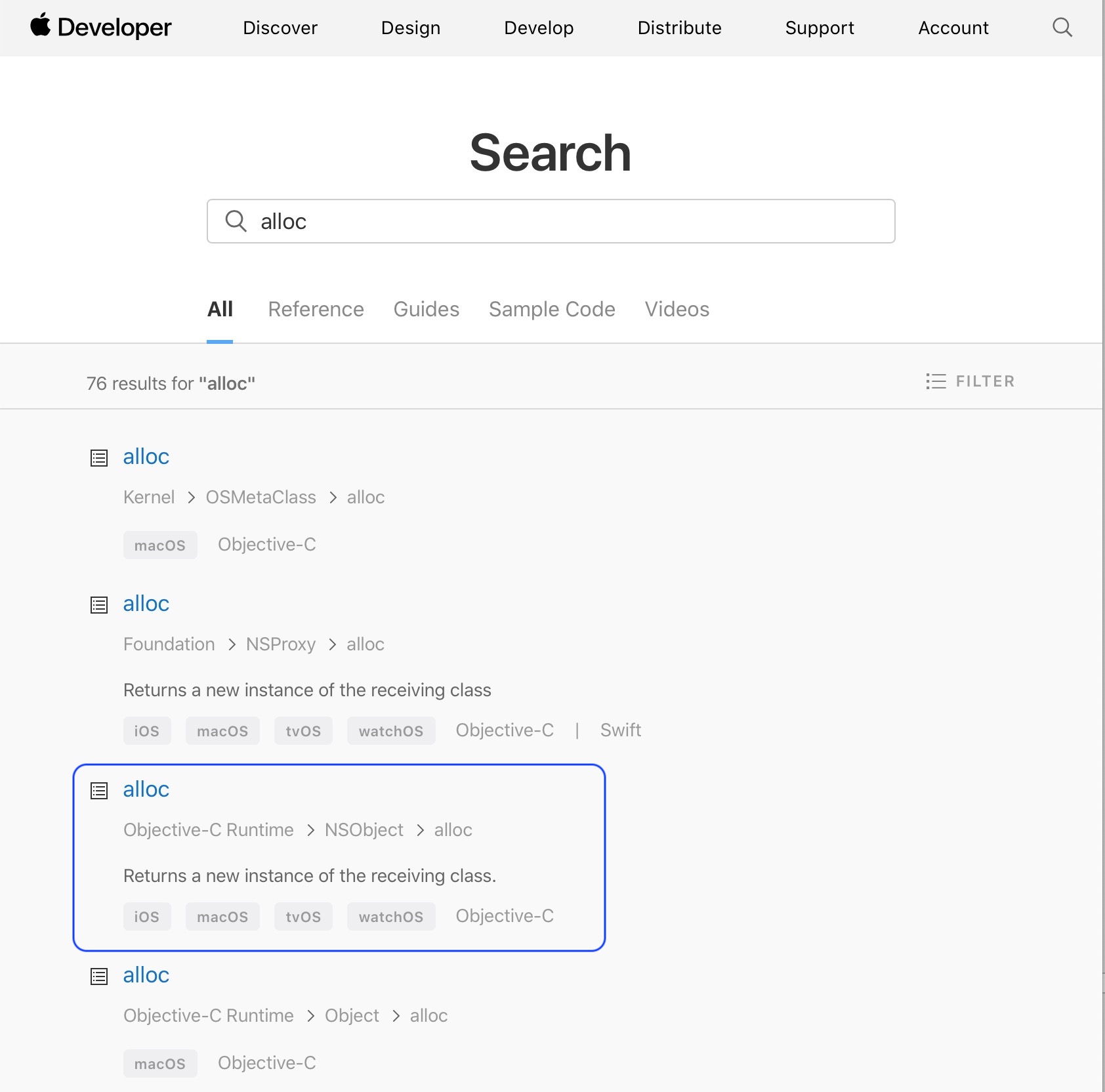
<p>To understand what is happening in the code given above we need to read the <a href="https://developer.apple.com/documentation">Apple developer documentation</a>. Let’s <a href="https://developer.apple.com/search/?q=alloc">search for the</a> <code class="language-plaintext highlighter-rouge">alloc</code> method name and we will get the following results:</p>

<p><img src="/assets/images/rm_gui_programming/devdocs_search_alloc.jpeg" alt="Devdocs Search Alloc" /></p>

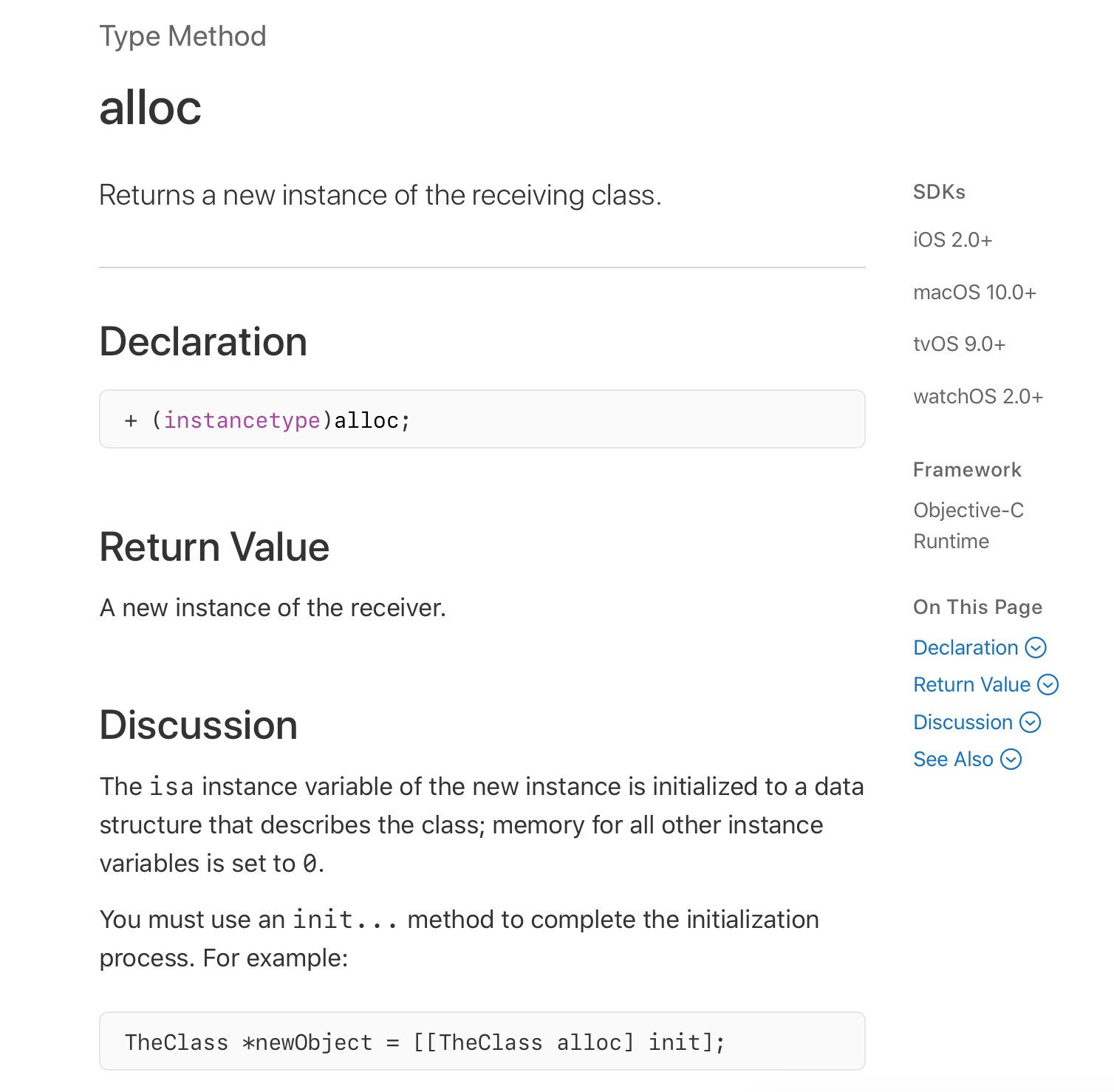
<p>Let’s click on the <code class="language-plaintext highlighter-rouge">Objective-C Runtime &gt; NSObject &gt; alloc</code> method and we will get the description of what this method does:</p>

<p><img src="/assets/images/rm_gui_programming/devdocs_alloc.jpg" alt="Devdocs Alloc" /></p>

<p>The documentation tells us that this method returns <em>“A new instance of the receiver.”</em> and <em>“You must use an init… method to complete the initialization process. For example: <code class="language-plaintext highlighter-rouge">TheClass *newObject = [[TheClass alloc] init];</code>“</em>.</p>

<p>Now this code example looks really strange, doesn’t it? Well that is because the example is written in Objective-C and not Ruby. This is really important: if you want to create macOS (and also iOS) apps in Rubymotion you must be <strong>able to understand <a href="https://developer.apple.com/library/archive/documentation/Cocoa/Conceptual/ProgrammingWithObjectiveC/Introduction/Introduction.html">Objective-C</a> and/or <a href="https://swift.org">Swift</a> code</strong>, because you will need to translate the code examples from the documentation to Rubymotion code.</p>

<div class="aside">
  <h4 id="switching-languages-in-the-documentation">Switching languages in the documentation</h4>
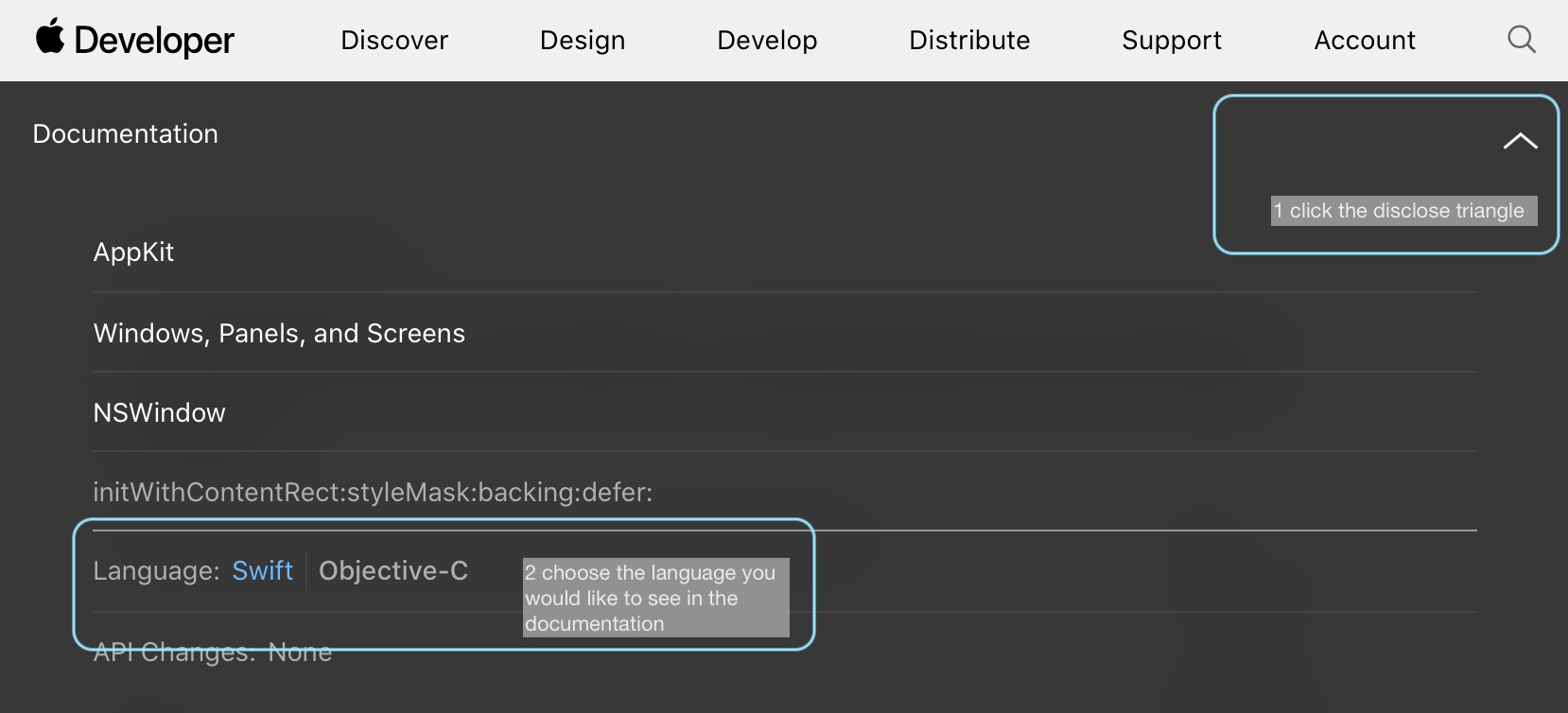
  <p>To change between Objective-C and Swift in the documentation click on the disclosure triangle at the top of the page and then select your Objective-C as the language to display. For technical reasons the Objective-C examples will work better for translating to Rubymotion.</p>

  <p><img src="/assets/images/rm_gui_programming/devdocs_select_language.jpg" alt="Devdocs Select Language" /></p>
</div>

<h3 id="translating-objective-c-to-rubymotion">Translating Objective-C to Rubymotion</h3>
<p>Objective-C method calls are written using square brackets. <code class="language-plaintext highlighter-rouge">[TheClass alloc]</code> means “call the <code class="language-plaintext highlighter-rouge">alloc</code> method of the <code class="language-plaintext highlighter-rouge">TheClass</code> class”. In Ruby we use dots for calling methods, like this: <code class="language-plaintext highlighter-rouge">TheClass.alloc</code>.</p>

<p>Method calls in Objective-C can be nested, like in the example from the developer documentation: <code class="language-plaintext highlighter-rouge">[[TheClass alloc] init]</code>, which means “call the <code class="language-plaintext highlighter-rouge">alloc</code> method and then call the <code class="language-plaintext highlighter-rouge">init</code> method on the value returned by <code class="language-plaintext highlighter-rouge">alloc</code>”. In Ruby we nest method calls by adding a dot behind the first method call. So our example translates to: <code class="language-plaintext highlighter-rouge">TheClass.alloc.init</code></p>

<p>Last, let’s have a look at assigning values to variables. In the original example this is done by writing <code class="language-plaintext highlighter-rouge">TheClass *newObject = [[TheClass alloc] init];</code>, meaning “the variable <code class="language-plaintext highlighter-rouge">newObject</code> is an instance of <code class="language-plaintext highlighter-rouge">TheClass</code> and let its value be the return value of <code class="language-plaintext highlighter-rouge">[[TheClass alloc] init]</code>”. As Objective-C is a <strong>statically typed language</strong> you must state which kind of value the variable has. Ruby, however, is a <strong>dynamically typed language</strong>, meaning that we do not need to specify the type of a variable. Also variables can change their types. Thus our translation to Rubymotion looks much cleaner than Objective-C: <code class="language-plaintext highlighter-rouge">new_object = TheClass.alloc.init</code></p>

<h3 id="creating-nsobject-subclasses">Creating NSObject subclasses</h3>
<p>Let’s look again at the documentation for the <code class="language-plaintext highlighter-rouge">alloc</code> method: <em>“A new instance of the receiver.”</em> and <em>“You must use an init… method to complete the initialization process. For example: <code class="language-plaintext highlighter-rouge">TheClass *newObject = [[TheClass alloc] init];</code>“</em>.</p>

<p>This is important to remember: when we are creating instances of <code class="language-plaintext highlighter-rouge">NSObject</code> subclasses we must usually call the <code class="language-plaintext highlighter-rouge">alloc</code> method followed by an <code class="language-plaintext highlighter-rouge">init</code> method. In our code from the default project the <code class="language-plaintext highlighter-rouge">init</code> method we are using is <code class="language-plaintext highlighter-rouge">initWithContentRect</code> of the <code class="language-plaintext highlighter-rouge">NSWindow</code> class.</p>

<div class="task">
  <h4 id="task">Task</h4>
  <p>Search Apple’s documentation for the <code class="language-plaintext highlighter-rouge">initWithContentRect</code> method of the <code class="language-plaintext highlighter-rouge">NSWindow</code> class and read its description.</p>

  <p><strong>Answer</strong>
  You should <a href="https://developer.apple.com/documentation/appkit/nswindow/1419477-initwithcontentrect?language=occ">have arrived here</a></p>
</div>

<h3 id="calling-methods-with-named-arguments-from-rubymotion">Calling methods with named arguments from Rubymotion</h3>
<p>Let’s look at the documentation for the <code class="language-plaintext highlighter-rouge">initWithContentRect</code> method once again:</p>

<div class="language-objective-c highlighter-rouge"><div class="highlight"><pre class="highlight"><code><span class="k">-</span> <span class="p">(</span><span class="n">instancetype</span><span class="p">)</span><span class="nf">initWithContentRect</span><span class="p">:(</span><span class="n">NSRect</span><span class="p">)</span><span class="nv">contentRect</span> <span class="nf">styleMask</span><span class="p">:(</span><span class="n">NSWindowStyleMask</span><span class="p">)</span><span class="nv">style</span> <span class="nf">backing</span><span class="p">:(</span><span class="n">NSBackingStoreType</span><span class="p">)</span><span class="nv">backingStoreType</span> <span class="nf">defer</span><span class="p">:(</span><span class="n">BOOL</span><span class="p">)</span><span class="nv">flag</span><span class="p">;</span>
</code></pre></div></div>

<p>Let’s try to understand the meaning of this code:</p>

<ol>
  <li><code class="language-plaintext highlighter-rouge">- (instancetype)initWithContentRect</code>: The method name is initWithContentRect and it returns a value of the type instancetype</li>
  <li><code class="language-plaintext highlighter-rouge">(NSRect)contentRect</code>: The first argument must be an instance of NSRect</li>
  <li><code class="language-plaintext highlighter-rouge">styleMask:(NSWindowStyleMask)style</code>: The second argument is called styleMask and must be of type NSWindowStyleMask</li>
  <li><code class="language-plaintext highlighter-rouge">backing:(NSBackingStoreType)backingStoreType</code>: The third argument is called backing and is of type NSBackingStoreType</li>
  <li><code class="language-plaintext highlighter-rouge">defer:(BOOL)flag</code>: The fourth argument is called defer and is of type BOOL (which stands for boolean)</li>
</ol>

<p>So we see that Objective-C uses named arguments in its method definitions. The problem is, that by default standard Ruby does not use named arguments. So the inventors of Rubymotion found the following workaround:</p>

<div class="language-ruby highlighter-rouge"><div class="highlight"><pre class="highlight"><code><span class="n">initWithContentRect</span><span class="p">(</span><span class="n">contentRect</span><span class="p">,</span> <span class="n">styleMask</span><span class="ss">:style</span><span class="p">,</span> <span class="n">backing</span><span class="ss">:backingStoreType</span><span class="p">,</span> <span class="n">defer</span><span class="ss">:flag</span><span class="p">)</span>
</code></pre></div></div>

<p>Calling the method this way in Rubymotion has the same effect as the Objective-C code above. Isn’t the Rubymotion code much easier to read?</p>

<div class="task">
  <h4 id="task-1">Task</h4>
  <p>Convert the following code examples from Objective-C into Rubymotion.</p>

  <h5 id="example-1">Example 1</h5>
  <div class="language-objective-c highlighter-rouge"><div class="highlight"><pre class="highlight"><code>  <span class="p">[</span><span class="n">NSApplication</span> <span class="nf">sharedApplication</span><span class="p">];</span>
</code></pre></div>  </div>

  <h5 id="example-2">Example 2</h5>
  <div class="language-objective-c highlighter-rouge"><div class="highlight"><pre class="highlight"><code>  <span class="n">NSMenuItem</span> <span class="o">*</span><span class="n">newMenu</span> <span class="o">=</span> <span class="p">[[</span><span class="n">NSMenuItem</span> <span class="nf">alloc</span><span class="p">]</span> <span class="nf">initWithTitle</span><span class="p">:</span><span class="s">@"New"</span> <span class="nf">action</span><span class="p">:</span><span class="nb">NULL</span> <span class="n">keyEquivalent</span><span class="o">:</span><span class="s">@""</span><span class="p">];</span>
</code></pre></div>  </div>

  <h5 id="example-3">Example 3</h5>
  <div class="language-objective-c highlighter-rouge"><div class="highlight"><pre class="highlight"><code>  <span class="n">NSWindow</span><span class="o">*</span> <span class="n">window</span> <span class="o">=</span> <span class="p">[</span><span class="n">NSWindow</span><span class="p">.</span><span class="n">alloc</span> <span class="nf">initWithContentRect</span><span class="p">:</span> <span class="n">NSMakeRect</span><span class="p">(</span><span class="mi">0</span><span class="p">,</span> <span class="mi">0</span><span class="p">,</span> <span class="mi">200</span><span class="p">,</span> <span class="mi">200</span><span class="p">)</span>
                           <span class="nl">styleMask:</span> <span class="n">NSWindowStyleMaskTitled</span>
                             <span class="nl">backing:</span> <span class="n">NSBackingStoreBuffered</span>
                               <span class="nl">defer:</span> <span class="nb">NO</span><span class="p">];</span>
</code></pre></div>  </div>

  <h4 id="answers">Answers</h4>
  <p>Here is what you should have come up with:</p>

  <h5 id="example-1-1">Example 1</h5>
  <div class="language-ruby highlighter-rouge"><div class="highlight"><pre class="highlight"><code>  <span class="c1"># Get the property sharedApplication from the NSApplication class</span>
  <span class="no">NSApplication</span><span class="p">.</span><span class="nf">sharedApplication</span>
</code></pre></div>  </div>

  <h5 id="example-2-1">Example 2</h5>
  <div class="language-ruby highlighter-rouge"><div class="highlight"><pre class="highlight"><code>  <span class="c1"># Get the property sharedApplication from the NSApplication class</span>
  <span class="n">new_menu</span> <span class="o">=</span> <span class="no">NSMenuItem</span><span class="p">.</span><span class="nf">alloc</span><span class="p">.</span><span class="nf">initWithTitle</span><span class="p">(</span><span class="s2">"New"</span><span class="p">,</span> <span class="n">action</span><span class="ss">:nil</span><span class="p">,</span> <span class="n">keyEquivalent</span><span class="ss">:""</span><span class="p">)</span>
</code></pre></div>  </div>

  <h5 id="example-3-1">Example 3</h5>
  <div class="language-ruby highlighter-rouge"><div class="highlight"><pre class="highlight"><code>  <span class="c1"># Create a window with a given rectangle</span>
  <span class="n">window</span> <span class="o">=</span> <span class="no">NSWindow</span><span class="p">.</span><span class="nf">alloc</span><span class="p">.</span><span class="nf">initWithContentRect</span><span class="p">(</span>
    <span class="no">NSMakeRect</span><span class="p">(</span><span class="mi">0</span><span class="p">,</span> <span class="mi">0</span><span class="p">,</span> <span class="mi">200</span><span class="p">,</span> <span class="mi">200</span><span class="p">),</span>
    <span class="ss">styleMask: </span><span class="no">NSWindowStyleMaskTitled</span><span class="p">,</span>
    <span class="ss">backing: </span><span class="no">NSBackingStoreBuffered</span><span class="p">,</span>
    <span class="ss">defer: </span><span class="kp">false</span>
  <span class="p">)</span>
</code></pre></div>  </div>
</div>

<div class="aside">
  <h4 id="an-app-for-translating-objective-c-to-rubymotion">An app for translating Objective-C to Rubymotion</h4>
  <p><a href="https://github.com/bensheldon">Ben Sheldon</a> created and published a Heroku app to translate Objective-C into Rubymotion: Just go here to test it: <a href="http://objc2rubymotion.herokuapp.com">http://objc2rubymotion.herokuapp.com</a></p>
</div>

<h2 id="wrap-up">Wrap-Up</h2>
<p>So here is what you have done in this chapter:</p>

<ul>
  <li>installed the Rubymotion toolchain</li>
  <li>created your first OS X Rubymotion project</li>
  <li>built and run your application for the first time</li>
  <li>analyzed the project folder</li>
  <li>learned how to translate Objective-C to Rubymotion</li>
</ul>

<p>In the next chapter we will start creating our first basic GUI.</p>

<p>If you liked the tutorial or have any questions on it contact me via mail or also join the Rubymotion slack channel here: <a href="https://motioneers.herokuapp.com">https://motioneers.herokuapp.com</a>. Also check out my apps <a href="https://docxtor.de">Docxtor</a> and <a href="https://gapped.de">Gapped</a>. Both were built using Rubymotion.</p>]]></content><author><name></name></author><category term="rubymotion" /><category term="development" /><category term="rubymotion" /><category term="gui" /><category term="desktop" /><category term="macos" /><summary type="html"><![CDATA[An article on getting started with macOS development with RubyMotion. It shows you how to initialize your first project and translate between Objective-C and RubyMotion.]]></summary></entry><entry><title type="html">Vendoring C libraries with Rubymotion</title><link href="http://vtlearn.de/rubymotion/2019/03/24/Vendoring-C-libraries-with-Rubymotion.html" rel="alternate" type="text/html" title="Vendoring C libraries with Rubymotion" /><published>2019-03-24T10:40:12+01:00</published><updated>2019-03-24T10:40:12+01:00</updated><id>http://vtlearn.de/rubymotion/2019/03/24/Vendoring-C-libraries-with-Rubymotion</id><content type="html" xml:base="http://vtlearn.de/rubymotion/2019/03/24/Vendoring-C-libraries-with-Rubymotion.html"><![CDATA[<p>This article will show you how to integrate a C library in a Rubymotion OSX project. We are going to build an app that lets you render a markdown text into HTML using the <a href="https://github.com/commonmark/cmark">C reference implementation</a> of the <a href="https://commonmark.org">CommonMark</a> project.</p>

<p>You can find the full source code of the finished project <a href="https://github.com/ediathome/motionmd">over on Github</a></p>

<p><strong>Last Updated</strong>: 18 May 2019 - corrected Brett Simmons to Brett Walker</p>

<p>There is also a sample project showing how to call Object-C classes from Rubymotion <a href="https://github.com/amirrajan/RubyMotionObjectiveC">here</a> (thanks Amir for pointing this out) and a related <a href="https://www.clayallsopp.com/posts/mixing-objective-c-and-ruby/">blog post from Clay Allsop</a>.</p>

<p>Although I have got a few years of programming in Rubymotion, I always thought of vendoring C libraries as some kind of black magic, but it is easier than it seems.</p>

<p><strong>Aside:</strong> <em>If you would like to build an app with Markdown rendering in Rubymotion you might also want to check out Brett Walker’s <code class="language-plaintext highlighter-rouge">@digitalmoksha</code> gem <a href="https://github.com/digitalmoksha/motion-markdown-it">motion-markdown-it</a>. Brett built his fantastic app <a href="https://versatilapp.com">VersatilMarkdown</a> on this technologoy.</em></p>

<p>Here is a quick overview of what we are going to do:</p>

<ol>
  <li><a href="#creating-the-rubymotion-project">Create the Rubymotion project</a></li>
  <li><a href="#downloading-and-building-cmark">Download and build cmark</a></li>
  <li><a href="#vendoring-the-library-in-rubymotion">Vendor the cmark library in the Rubymotion project</a></li>
  <li><a href="#using-cmark-from-the-app">Using cmark from the app</a></li>
  <li><a href="#wrap-up">Wrap things up</a></li>
</ol>

<h2 id="creating-the-rubymotion-project">Creating the Rubymotion project</h2>
<p>Let’s get started with our new project. Open up the Terminal, and fire</p>

<div class="language-shell highlighter-rouge"><div class="highlight"><pre class="highlight"><code><span class="nv">$ </span>motion create <span class="nt">--template</span><span class="o">=</span>osx mdmotion
</code></pre></div></div>

<p>You should see something like:</p>

<div class="language-plaintext highlighter-rouge"><div class="highlight"><pre class="highlight"><code>[!] You may want to run `motion repo` if it's been a while since you've updated templates.
    Create mdmotion
    Create mdmotion/.gitignore
    Create mdmotion/Gemfile
    Create mdmotion/README.md
    Create mdmotion/Rakefile
    Create mdmotion/app/app_delegate.rb
    Create mdmotion/app/menu.rb
    Create mdmotion/resources/Assets.xcassets/AppIcon.appiconset/1024x1024.png
    Create mdmotion/resources/Assets.xcassets/AppIcon.appiconset/Contents.json
    Create mdmotion/resources/Assets.xcassets/AppIcon.appiconset/Icon_128x128.png
    Create mdmotion/resources/Assets.xcassets/AppIcon.appiconset/Icon_128x128@2x.png
    Create mdmotion/resources/Assets.xcassets/AppIcon.appiconset/Icon_16x16.png
    Create mdmotion/resources/Assets.xcassets/AppIcon.appiconset/Icon_16x16@2x.png
    Create mdmotion/resources/Assets.xcassets/AppIcon.appiconset/Icon_256x256.png
    Create mdmotion/resources/Assets.xcassets/AppIcon.appiconset/Icon_256x256@2x.png
    Create mdmotion/resources/Assets.xcassets/AppIcon.appiconset/Icon_32x32.png
    Create mdmotion/resources/Assets.xcassets/AppIcon.appiconset/Icon_32x32@2x.png
    Create mdmotion/resources/Assets.xcassets/AppIcon.appiconset/Icon_512x512.png
    Create mdmotion/resources/Assets.xcassets/AppIcon.appiconset/Icon_512x512@2x.png
    Create mdmotion/resources/Assets.xcassets/Contents.json
    Create mdmotion/resources/Credits.rtf
    Create mdmotion/spec/main_spec.rb
</code></pre></div></div>

<p>To see if everything is working, cd into the project directory and build the application.</p>

<div class="language-shell highlighter-rouge"><div class="highlight"><pre class="highlight"><code><span class="nv">$ </span><span class="nb">cd </span>mdmotion
<span class="nv">$ </span>bundle
<span class="nv">$ </span>bundle <span class="nb">exec </span>rake
</code></pre></div></div>

<p>This should give you a blank application window, which shows that you succesfully created the basic project.</p>

<h2 id="downloading-and-building-cmark">Downloading and building cmark</h2>
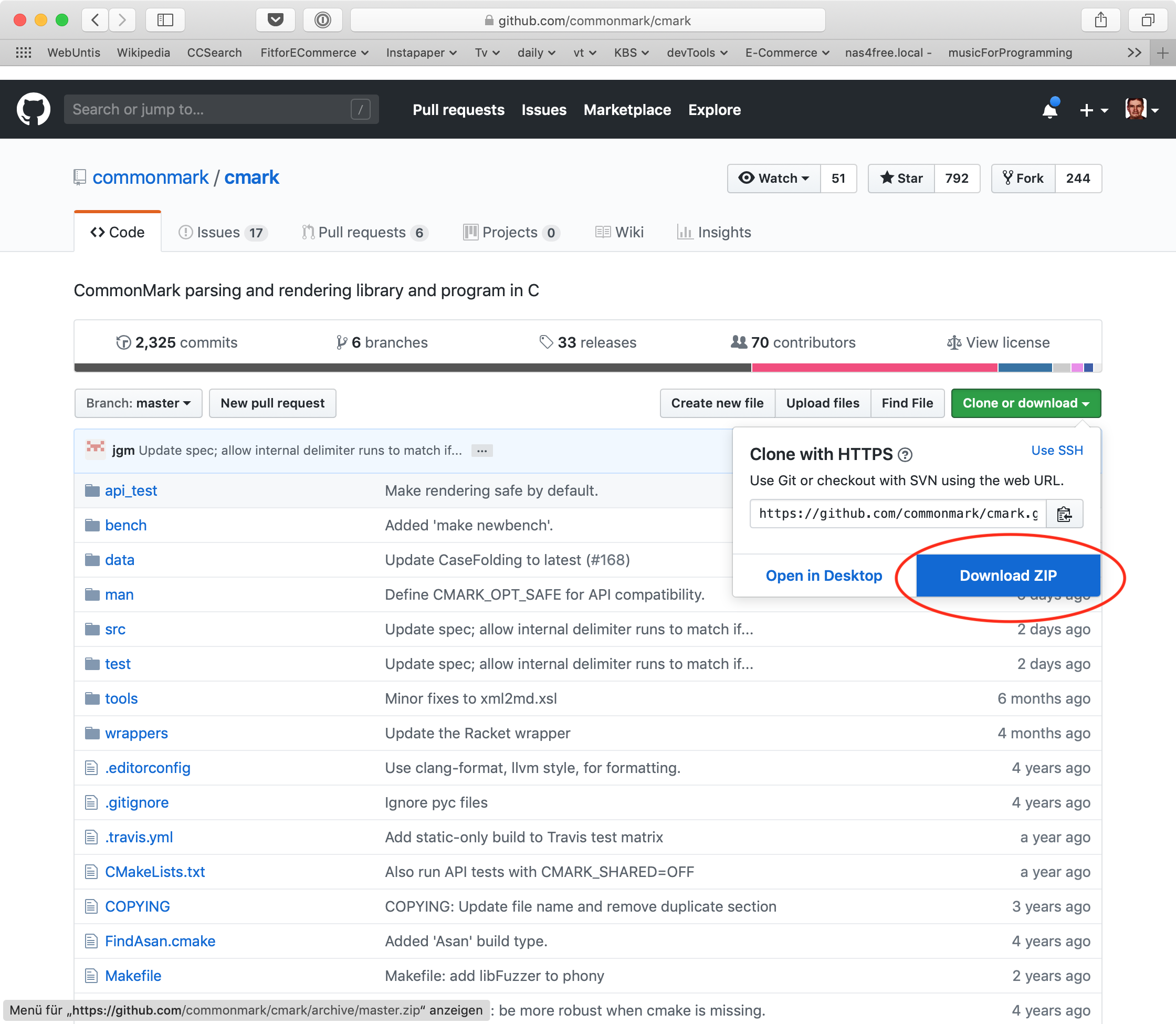
<p>Next we will download the cmark project. Go over to the project site on Github and click on the “Clone or download” button and download the project as a .zip file. Of course you could also clone the repo if you prefer that.</p>

<p><img src="/assets/images/rm_vendoring/cmark_download.png" alt="Cmark Download" /></p>

<p>Double-click the .zip file in the Finder to unpack. This will result in a <code class="language-plaintext highlighter-rouge">cmark-master</code> folder. Then go back to the Terminal and cd into the <code class="language-plaintext highlighter-rouge">cmark-master</code> dir e.g. like so:</p>

<div class="language-shell highlighter-rouge"><div class="highlight"><pre class="highlight"><code><span class="nv">$ </span><span class="nb">cd</span> ~/Downloads/cmark-master
</code></pre></div></div>

<p>The cmark download doesn’t contain a finished build, so it is our task to create that. Therefore we follow along with the <a href="https://github.com/commonmark/cmark#installing">installation instructions</a> in the cmark README and perform the following steps:</p>

<div class="language-shell highlighter-rouge"><div class="highlight"><pre class="highlight"><code><span class="nv">$ </span><span class="nb">mkdir </span>build  <span class="c"># create the build dir</span>
<span class="nv">$ </span><span class="nb">cd </span>build     <span class="c"># move to the build dir</span>
<span class="nv">$ </span>cmake ..     <span class="c"># create the Makefile</span>
<span class="nv">$ </span>make         <span class="c"># build cmark</span>
</code></pre></div></div>
<p>The building process will take some time to complete. Please <strong>make sure that you have XCode and the XCode Command line tools installed</strong> for this step to work. If this step ran smoothly you have just successfully built cmark.</p>

<h2 id="vendoring-the-library-in-rubymotion">Vendoring the library in Rubymotion</h2>
<p>Now we need to get the library into our Rubymotion project. First of all we need to copy over the built cmark library into the project. Let’s get back to the mdmotion project folder and run the following commands:</p>

<div class="language-shell highlighter-rouge"><div class="highlight"><pre class="highlight"><code><span class="nv">$ </span><span class="nb">cd </span>mypath/mdmotion  <span class="c"># please exchange mypath with the path to your project dir</span>
<span class="nv">$ </span><span class="nb">mkdir </span>vendor        <span class="c"># create a vendor dir for all third-party libraries</span>
<span class="nv">$ </span><span class="nb">mkdir </span>vendor/cmark  <span class="c"># add a cmark dir to the vendor dir</span>
<span class="nv">$ </span><span class="nb">cp</span> <span class="nt">-R</span> ~/Downloads/cmark-master/build/src/<span class="k">*</span> ./vendor/cmark/  <span class="c"># copy the files</span>
<span class="nv">$ </span><span class="nb">cp</span> ~/Downloads/cmark-master/src/cmark.h ./vendor/cmark/  <span class="c"># copy the header file</span>
<span class="nv">$ </span><span class="nb">ls </span>vendor/cmark     <span class="c"># list the files</span>
</code></pre></div></div>
<p>Of the steps above it is very important to copy over the <code class="language-plaintext highlighter-rouge">cmark.h</code> header file, as we will see later.</p>

<p>The list command should give you something like:</p>

<div class="language-shell highlighter-rouge"><div class="highlight"><pre class="highlight"><code><span class="nv">$ </span><span class="nb">ls </span>vendor/cmark
cmark                 cmark.3               cmark_export.h        libcmark.a
cmark-release.cmake   cmark.cmake           cmark_version.h       libcmark.dylib
cmark.1               cmark.h               libcmark.0.28.3.dylib libcmark.pc
</code></pre></div></div>

<p>Now that we put all the necessary stuff there we need to tell Rubymotion that it must include the libraries at runtime. Therefore we will edit the Rakefile and add the following line:</p>

<div class="language-ruby highlighter-rouge"><div class="highlight"><pre class="highlight"><code><span class="no">Motion</span><span class="o">::</span><span class="no">Project</span><span class="o">::</span><span class="no">App</span><span class="p">.</span><span class="nf">setup</span> <span class="k">do</span> <span class="o">|</span><span class="n">app</span><span class="o">|</span>
  <span class="c1"># Use `rake config' to see complete project settings.</span>
  <span class="n">app</span><span class="p">.</span><span class="nf">name</span> <span class="o">=</span> <span class="s1">'mdmotion'</span>
  <span class="n">app</span><span class="p">.</span><span class="nf">deployment_target</span> <span class="o">=</span> <span class="s1">'10.13'</span>
  <span class="n">app</span><span class="p">.</span><span class="nf">info_plist</span><span class="p">[</span><span class="s1">'CFBundleIconName'</span><span class="p">]</span> <span class="o">=</span> <span class="s1">'AppIcon'</span>
  <span class="c1"># HERE COMES THE IMPORTANT CMARK STUFF</span>
  <span class="n">app</span><span class="p">.</span><span class="nf">vendor_project</span><span class="p">(</span><span class="s2">"vendor/cmark"</span><span class="p">,</span> <span class="ss">:static</span><span class="p">)</span>
<span class="k">end</span>
</code></pre></div></div>

<p>Before we try if the project builds, we will do a rake clean and then build. You could probably also leave away the cleaning, but according to my experience cleaning is a good way to avoid errors when updating vendored libraries or also CocoaPods.</p>

<div class="language-shell highlighter-rouge"><div class="highlight"><pre class="highlight"><code><span class="nv">$ </span>bundle <span class="nb">exec </span>rake clean:all
…
<span class="nv">$ </span>bundle <span class="nb">exec </span>rake
</code></pre></div></div>

<p>If the app builds and you see the empty application window again it might look disappointing, but actually this is a good sign. Now we need to implement the actual application code to convert Markdown to HTML…</p>

<h2 id="using-cmark-from-the-app">Using cmark from the app</h2>
<p>The tricky part of using cmark - and any other C library - in Rubymotion is to find out how to call methods and create objects which are provided by the library. If we are looking for classes there is cool way to do that. We start the application and then print all the available classes from the repl command line.</p>

<div class="language-shell highlighter-rouge"><div class="highlight"><pre class="highlight"><code><span class="nv">$ </span>bundle <span class="nb">exec </span>rake
… <span class="c"># lots of build output here</span>
<span class="o">(</span>main<span class="o">)&gt;</span> Kernel.constants
<span class="o">=&gt;</span> <span class="o">[</span>:NSLeafProxy, :NSProxy, :NSServiceViewControllerUnifyingProxy, :NSVB_TargetedProxy, :NSVB_ViewServiceImplicitAnimationDecodingProxy,… <span class="c"># a quite lengthy list</span>
</code></pre></div></div>

<p>The list which we just received shows all the constants (including classes) which are defined. As we are looking for cmark we will hit <code class="language-plaintext highlighter-rouge">CMD+F</code> to search for <code class="language-plaintext highlighter-rouge">cmark</code> and find … Nothing! Nothing? Yes, indeed the cmark library does not add any classes which are globally available. This is bad luck for us, but we still have got another trick up our sleeves.</p>

<p>Remember the <code class="language-plaintext highlighter-rouge">vendor/cmark/cmark.h</code> header file which we copied above? We will now look into this file in order to find any methods which the library exposes.</p>

<p>After some search you will probably find the file <code class="language-plaintext highlighter-rouge">src/cmark.h</code>. Well I am not a C expert and I never learned the language, but line 28 looks like a pretty straight method definition:</p>

<div class="language-c highlighter-rouge"><div class="highlight"><pre class="highlight"><code><span class="kt">char</span> <span class="o">*</span><span class="nf">cmark_markdown_to_html</span><span class="p">(</span><span class="k">const</span> <span class="kt">char</span> <span class="o">*</span><span class="n">text</span><span class="p">,</span> <span class="kt">size_t</span> <span class="n">len</span><span class="p">,</span> <span class="kt">int</span> <span class="n">options</span><span class="p">);</span>
</code></pre></div></div>

<p>So this tells us, that:</p>

<ul>
  <li>this method returns a char datatype</li>
  <li>the method name is <code class="language-plaintext highlighter-rouge">cmark_markdown_to_html</code></li>
  <li>first argument is the markdown text</li>
  <li>second argument is the length of the text, i.e. number of characters</li>
  <li>third argument provides additional options which we currently don’t know about</li>
</ul>

<p>This is enough information for us to play around a little bit. Let’s edit the applications delegate class. First we will add a private method which returns a basic markdown string as a quick and dirty test:</p>

<div class="language-ruby highlighter-rouge"><div class="highlight"><pre class="highlight"><code>  <span class="kp">private</span>

  <span class="k">def</span> <span class="nf">mdstring</span>
    <span class="s2">"# Hello world</span><span class="se">\n</span><span class="s2">This is some **fancy** markdown."</span>
  <span class="k">end</span>
<span class="k">end</span> <span class="c1"># end class AppDelegate</span>
</code></pre></div></div>

<p>Next we try to parse the markdown string in a new method. We are using the cmark method we found out about above:</p>

<div class="language-ruby highlighter-rouge"><div class="highlight"><pre class="highlight"><code>  <span class="k">def</span> <span class="nf">parse_markdown</span>
    <span class="n">html_string</span> <span class="o">=</span> <span class="n">cmark_markdown_to_html</span><span class="p">(</span><span class="n">mdstring</span><span class="p">,</span> <span class="n">mdstring</span><span class="p">.</span><span class="nf">length</span><span class="p">,</span> <span class="mi">0</span><span class="p">)</span>
    <span class="nb">puts</span> <span class="s2">"The html is: </span><span class="si">#{</span><span class="n">html_string</span><span class="si">}</span><span class="s2">"</span>
  <span class="k">end</span>
</code></pre></div></div>

<p>So what we do is, call the <code class="language-plaintext highlighter-rouge">cmark_markdown_to_html</code> method with the string from the <code class="language-plaintext highlighter-rouge">mdstring</code> method, the length of the string and 0 for the integer option value, which we don’t know right now. Then we output the result via puts. We must also make sure to call this method by adding a method-call to the <code class="language-plaintext highlighter-rouge">applicationDidFinishLaunching</code> method of the AppDelegate class:</p>

<div class="language-ruby highlighter-rouge"><div class="highlight"><pre class="highlight"><code>  <span class="k">def</span> <span class="nf">applicationDidFinishLaunching</span><span class="p">(</span><span class="n">notification</span><span class="p">)</span>
    <span class="n">buildMenu</span>
    <span class="n">buildWindow</span>
    <span class="n">parse_markdown</span> <span class="c1"># call the parse function</span>
  <span class="k">end</span>
</code></pre></div></div>

<p>Now when we build and run the app the following should happen:</p>

<div class="language-shell highlighter-rouge"><div class="highlight"><pre class="highlight"><code><span class="nv">$ </span>bundle execute rake
…
output: <span class="s1">'&lt;h1&gt;hello world&lt;/h1&gt;'</span>
</code></pre></div></div>

<p>Hooray we just rendered html from a markdown string! Now you can go ahead and build something useful.</p>

<h2 id="wrap-up">Wrap-Up</h2>
<p>So let’s have a look once again on what we just did. First we created our Rubymotion project. Then we downloaded and built the cmark library. Next we had to add the library to our Rubymotion project. It was very important to also add the <code class="language-plaintext highlighter-rouge">cmark.h</code> header file so that the messages are also discovered by Rubymotion. Then we edited the Rakefile to include cmark. Afterward we applied a few tricks to find out about how to call the cmark library from Rubymotion code. After we had found out how to do that, we successfully rendered a Markdown string and that’s it!</p>

<p>If you liked the tutorial or have any questions on it contact me via mail or also join the Rubymotion slack channel here: <a href="https://motioneers.herokuapp.com">https://motioneers.herokuapp.com</a>. Also check out my apps <a href="https://docxtor.de">Docxtor</a> and <a href="https://gapped.de">Gapped</a>. Both were built using Rubymotion.</p>]]></content><author><name></name></author><category term="rubymotion" /><category term="development" /><category term="rubymotion" /><category term="vendoring" /><summary type="html"><![CDATA[This article will show you how to integrate a C library in a Rubymotion OSX project. We are going to build an app that lets you render a markdown text into HTML using the C reference implementation of the CommonMark project.]]></summary></entry><entry><title type="html">Run the Rubymotion Hello World app in VirtualBox</title><link href="http://vtlearn.de/rubymotion/2017/04/19/RM-Android-Apps-with-VirtualBox.html" rel="alternate" type="text/html" title="Run the Rubymotion Hello World app in VirtualBox" /><published>2017-04-19T11:40:12+02:00</published><updated>2017-04-19T11:40:12+02:00</updated><id>http://vtlearn.de/rubymotion/2017/04/19/RM-Android-Apps-with-VirtualBox</id><content type="html" xml:base="http://vtlearn.de/rubymotion/2017/04/19/RM-Android-Apps-with-VirtualBox.html"><![CDATA[<p>I wanted to try the <a href="https://github.com/HipByte/Flow">RubyMotion Flow</a> gem the other day and especially the Android part of it. Problem was how to test the Android app for development without having to buy and Android device. There is the built in emulator in the Android SDK, but after waiting for hours for it to boot up I lost faith and interest in it.</p>

<p>I tested some other alternatives, but all of them had some major drawbacks:</p>

<ul>
  <li><strong><a href="http://bluestacks.com">BlueStacks</a></strong> collided with my local Docker installation and crashed my MacBook completely. Also I am not sure if you can use it for debugging.</li>
  <li><strong>Andyroid</strong> installed MacKeeper on my Mac which I consider malware and that’s also why I am not linking to it. I would recommend to KEEP YOUR HANDS OF ANDYROID!</li>
  <li><strong><a href="https://developer.xamarin.com/releases/android/android-player/">Xamarin Android Player</a></strong> seemed to show quite good performance, but it is no longer supported by Xamarin.</li>
</ul>

<p>So my plan was to setup a VirtualBox machine for RubyMotion development. Probably this setup does not make for a good, performant development setup for production. However, if you would like to do a quick test of RubyMotion’s Android capabilities it is a cheap (free) solution.</p>

<h2 id="setting-up-virtualbox">Setting up VirtualBox</h2>
<p>For a more detailled guide on how to install Android in VirtualBox follow this guide <a href="http://www.rickylford.com/install-android-5-1-on-virtualbox/">Install Android 5.1 on VirtualBox - Ricky Ford</a>. It also works with more recent versions of Android.</p>

<ol>
  <li>Download and install <a href="https://www.virtualbox.org">VirtualBox</a></li>
  <li>Download Android Image file from <a href="http://www.android-x86.org/download">http://www.android-x86.org</a>. I chose the <em>“Android-x86 6.0-r1 live and installation iso (32-bit)”</em> image</li>
  <li>Install Android to a new virtual machine in VirtualBox. Here is a quick overview of the settings: <img src="//img/rm_android_vb/vb_settings@2x.png" alt="Vb Settings" /></li>
</ol>

<h2 id="preparing-the-virtual-device-for-debugging">Preparing the virtual device for debugging</h2>
<p>Next we need to enable Developer mode in Android:</p>

<ol>
  <li>Go to Settings -&gt; “About tablet”</li>
  <li>Click on build number 7 times to enable developer mode</li>
  <li>Go to Settings -&gt; “Developer Options”</li>
  <li>Turn on “USB debugging”</li>
  <li>Go back to Settings -&gt; “Security” and enable “Unknown Sources” to allow installation of apps</li>
</ol>

<h2 id="connecting-to-the-device-for-rubymotion-development">Connecting to the device for RubyMotion development</h2>
<p>Lastly we need to connect to the virtual device so that we can run and install apps to it via the RubyMotion rake command.</p>

<p>First let’s connect the Android Debug Bridge (ADB) to our virtual device:</p>

<p>Enable port forwarding in VirtualBox: Go to the “Oracle VM VirtualBoxManager” window, select your Android box and click on “Settings” in the toolbar. <img src="//img/rm_android_vb/vb_settings@2x.png" alt="Vb Settings@2x" /></p>

<p>Select the “Network” option, collapse the “Advanced” section and click on Port Forwarding <img src="//img/rm_android_vb/vb_network_advanced@2x.png" alt="Vb Network Advanced@2x" /></p>

<p>Forward the Host Port <code class="language-plaintext highlighter-rouge">5555</code> to the Guest port <code class="language-plaintext highlighter-rouge">5555</code>, click Ok twice to enable the new settings <img src="//img/rm_android_vb/vb_port_forwarding@2x.png" alt="Vb Port Forwarding@2x" /></p>

<p>Go to the terminal and connect adb to your VirtualBox Android device with the following command:</p>

<div class="language-plaintext highlighter-rouge"><div class="highlight"><pre class="highlight"><code>$ ~/.rubymotion-android/sdk/platform-tools/adb connect localhost:5555
</code></pre></div></div>

<h2 id="create-the-app-and-run-it">Create the app and run it</h2>
<p>Now let’s create a “Hello Android” app as detailled in the RubyMotion <a href="http://www.rubymotion.com/developers/guides/manuals/android/getting-started/">Getting Started guide</a>:</p>

<div class="language-plaintext highlighter-rouge"><div class="highlight"><pre class="highlight"><code>$  motion create --template=android Hello
    Create Hello
    Create Hello/.gitignore
    Create Hello/app/main_activity.rb
    Create Hello/Gemfile
    Create Hello/Rakefile
    Create Hello/spec/main_spec.rb
</code></pre></div></div>

<p>Go the new project dir and change your <code class="language-plaintext highlighter-rouge">main_activity.rb</code> file to:</p>

<div class="language-plaintext highlighter-rouge"><div class="highlight"><pre class="highlight"><code>class MainActivity &lt; Android::App::Activity
  def onCreate(savedInstanceState)
    puts "Hello World!"
    super
    view = Android::Widget::TextView.new(self)
    view.text = "Hello Android!"
    self.contentView = view
  end
end
</code></pre></div></div>

<p>Now let’s try to install your RubyMotion application to the virtual Android device by running the following command in your RubyMotion project dir:</p>

<div class="language-plaintext highlighter-rouge"><div class="highlight"><pre class="highlight"><code>$ rake emulator
    Create ./build/Development-25/classes.dex
    Create ./build/Development-25/Hello.apk
      Sign ./build/Development-25/Hello.apk
     Align ./build/Development-25/Hello.apk
   Install ./build/Development-25/Hello.apk
    ERROR! Cannot install an app built for API version 25 on a device running API version 23
</code></pre></div></div>

<p>Ok now the RubyMotion default template tries to build for API version 25, but our device runs version 23. We need to fix this by changing the API version in our <code class="language-plaintext highlighter-rouge">Rakefile</code>:</p>

<div class="language-plaintext highlighter-rouge"><div class="highlight"><pre class="highlight"><code># -*- coding: utf-8 -*-
$:.unshift("/Library/RubyMotion/lib")
require 'motion/project/template/android'

begin
  require 'bundler'
  Bundler.require
rescue LoadError
end

Motion::Project::App.setup do |app|
  # Use `rake config' to see complete project settings.
  app.name = 'Hello'
  app.api_version = '23'
end
</code></pre></div></div>

<p>Now let’s try again and everything should work as expected:</p>

<div class="language-plaintext highlighter-rouge"><div class="highlight"><pre class="highlight"><code>$ rake emulator                                                      
    Create ./build/Development-23/classes.dex
    Create ./build/Development-23/HelloAndroid.apk
      Sign ./build/Development-23/HelloAndroid.apk
     Align ./build/Development-23/HelloAndroid.apk
   Install ./build/Development-23/HelloAndroid.apk
     Start com.yourcompany.helloandroid/.MainActivity
--------- beginning of main
--------- beginning of system
04-19 12:02:38.493  2786  2794 E art     : Thread attaching while runtime is shutting down: Binder_1
(main)&gt; 
</code></pre></div></div>

<p>The app should show up in the homescreen:
<img src="//img/rm_android_vb/android_homescreen@2x.png" alt="Android Homescreen@2x" /></p>

<p>And the app should work as expected:
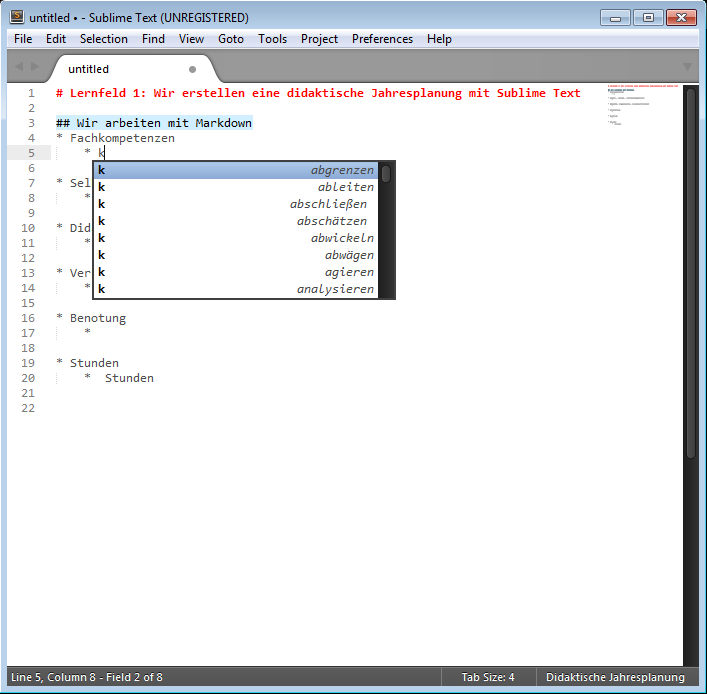
<img src="//img/rm_android_vb/android_hello_android@2x.png" alt="Android Hello Android@2x" /></p>]]></content><author><name></name></author><category term="rubymotion" /><category term="development" /><category term="rubymotion" /><category term="android" /><summary type="html"><![CDATA[I wanted to try the RubyMotion Flow gem the other day and especially the Android part of it. Problem was how to test the Android app for development without having to buy and Android device. There is the built in emulator in the Android SDK, but after waiting for hours for it to boot up I lost faith and interest in it.]]></summary></entry><entry><title type="html">Didaktische Jahresplanung mit SublimeText erstellen</title><link href="http://vtlearn.de/2015/10/11/DJ-mit-Sublime.html" rel="alternate" type="text/html" title="Didaktische Jahresplanung mit SublimeText erstellen" /><published>2015-10-11T11:40:12+02:00</published><updated>2015-10-11T11:40:12+02:00</updated><id>http://vtlearn.de/2015/10/11/DJ-mit-Sublime</id><content type="html" xml:base="http://vtlearn.de/2015/10/11/DJ-mit-Sublime.html"><![CDATA[<p>Eine systematische Didaktische Jahresplanung zu erstellen ist nicht einfach. In diesem Artikel zeige ich eine Möglichkeit, mit Hilfe von <a href="http://daringfireball.net/projects/markdown/">Markdown</a> automatisch einen didaktischen Jahresplan zu erstellen.</p>

<h2 id="sublimetext-und-djpreview-installieren">SublimeText und DJPreview installieren</h2>

<ol>
  <li><a href="http://www.sublimetext.com/3">Download der aktuellen Version von SublimeText</a> (in der Regel die Version für Windows 64-Bit, für Mac oder Linux die jeweils aktuelle Version)</li>
  <li>SublimeText starten</li>
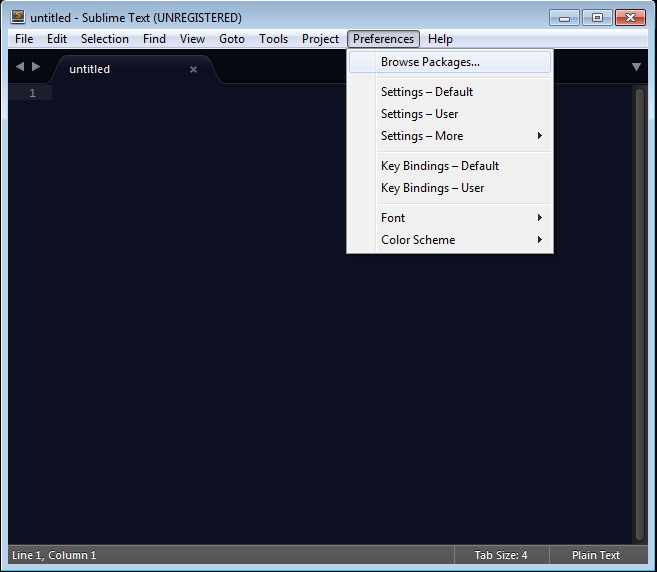
  <li>Befehl <strong>Windows:</strong> “Preferences -&gt; Browse Packages” / <strong>Mac:</strong> “SublimeText -&gt; Preferences -&gt; Browse Packages” auswählen. Es öffnet sich ein Fenster im Windows Explorer bzw. Finder (Mac). <img src="/assets/images/didplanapp/windows_01_browse_packages.png" alt="Befehl &quot;Browse Packages&quot;" /></li>
  <li>
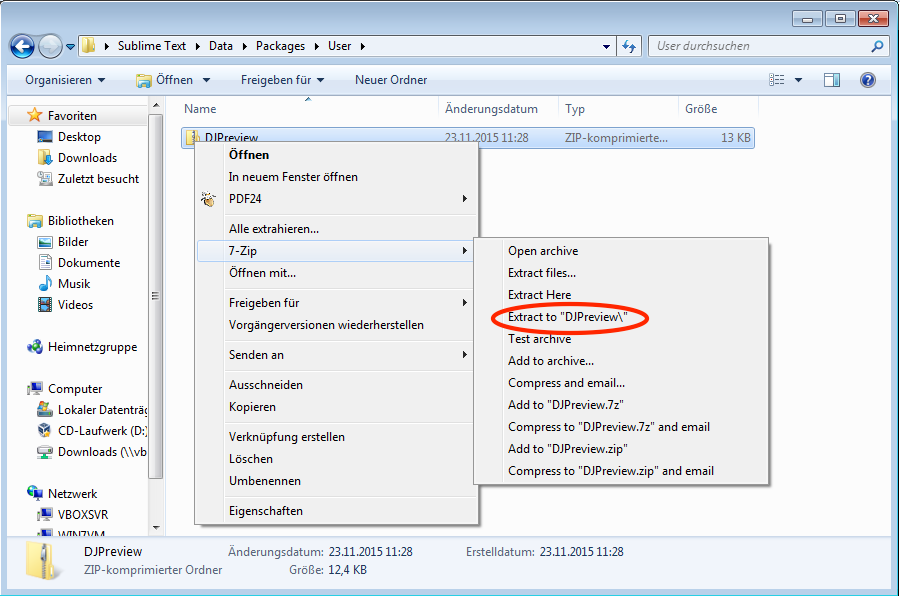
    <p>Die <a href="https://github.com/ediathome/DJPreview/archive/v0.2.zip">Zip-Datei</a> herunterladen und in den soeben geöffneten Ordner ‘User’ entpacken. <img src="/assets/images/didplanapp/windows_06_extract_zip.png" alt="Entpacken der Datei mit 7Zip" /></p>
  </li>
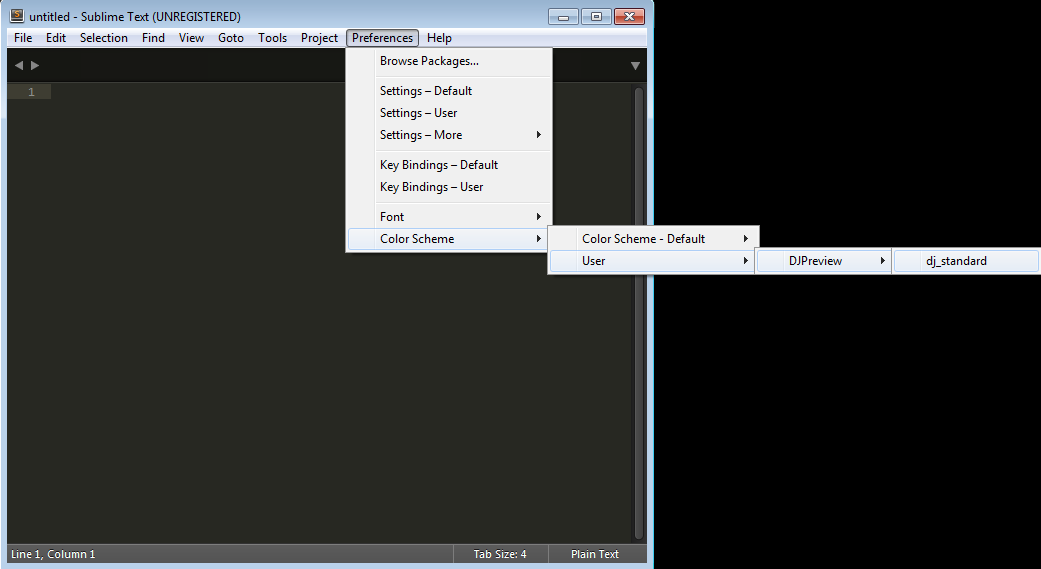
  <li>In Sublime Text müssen Sie nun noch das Farbschema auswählen über “Preferences” -&gt; “Color Scheme” -&gt; “User” -&gt; “DJPreview” -&gt; “dj_standard” <img src="/assets/images/didplanapp/windows_07_color_scheme.png" alt="Auswählen des Farbschemas" /></li>
  <li>Außerdem müssen Sie eventuell noch die Syntax auswählen. Klicken Sie dazu im Fenster unten rechts und wählen “Didaktische Jahresplanung” aus.</li>
</ol>

<p>So sieht das fertige Ergebnis aus:
<img src="/assets/images/didplanapp/windows_installed.png" alt="Screenshot Sublime Text mit DJPreview" /></p>

<h2 id="lernfeld-in-sublimetext-eingeben">Lernfeld in SublimeText eingeben</h2>
<ol>
  <li>In SublimeText können nun ab sofort die Textsnippets abgerufen werden. Eine Übersicht über alle Tastenkürzel siehe unten.</li>
  <li>Wenn das Lernfeld fertig eingegeben ist, drücken Sie strg + R (Windows) oder Command + R (Mac). Die Seite <a href="/site/didplanapp/stable/index.html">http://vtlearn.de/didplanapp/stable/index.html</a> wird aufgerufen und der Text in die Zwischenablage kopiert. Fügen Sie den Text aus der Zwischenablage in das Eingabefeld ein und klicken auf “Vorschau”. Das Lernfeld wird formatiert ausgegeben. Über den Befehl “Drucken” wird der Druck-Dialog geöffnet.</li>
</ol>

<h2 id="tab-kürzel">Tab-Kürzel</h2>
<p>Geben Sie die folgenden Kürzel, gefolgt von der Tabulator-Taste ein, um die Vorlagen abzurufen. Wenn der Vorlagentext eingefügt ist, können Sie mit der Tabulator-Taste zu den Eingabefeldern springen.</p>

<table>
  <thead>
    <tr>
      <th>Tab-Kürzel</th>
      <th>Ausgabe</th>
    </tr>
  </thead>
  <tbody>
    <tr>
      <td><strong>lf</strong></td>
      <td>Überschrift für ein Lernfeld</td>
    </tr>
    <tr>
      <td><strong>ls</strong></td>
      <td>Vorlage für eine Lernsituation im Didaktischen Jahresplan</td>
    </tr>
    <tr>
      <td><strong>lsb</strong></td>
      <td>Vorlage für eine Lernsituationsbeschreibung</td>
    </tr>
  </tbody>
</table>

<h2 id="farbschema">Farbschema</h2>
<p>Zur Verwendung des auf die Didaktische Jahresplanung angepassten Farbschemas wählen Sie im Menu</p>

<h2 id="textergänzung-und-wortvorschläge">Textergänzung und Wortvorschläge</h2>
<p>Drücken Sie strg + Leertaste, um Wortvorschläge zu erhalten. Das DJPreview-Plugin erkennt, in welchem Kontext Sie sich gerade befinden und gibt zu den momentan bearbeiteten Kompetenzen passende Verbvorschläge an.</p>]]></content><author><name></name></author><category term="de" /><category term="teaching" /><category term="school" /><summary type="html"><![CDATA[Eine systematische Didaktische Jahresplanung zu erstellen ist nicht einfach. In diesem Artikel zeige ich eine Möglichkeit, mit Hilfe von Markdown automatisch einen didaktischen Jahresplan zu erstellen.]]></summary></entry><entry><title type="html">Disable automatic Firefox HTML5 form validation in watir-webdriver</title><link href="http://vtlearn.de/webdevelopment/2015/10/11/Disable-Firefox-HTML5-form-validation.html" rel="alternate" type="text/html" title="Disable automatic Firefox HTML5 form validation in watir-webdriver" /><published>2015-10-11T10:00:00+02:00</published><updated>2015-10-11T10:00:00+02:00</updated><id>http://vtlearn.de/webdevelopment/2015/10/11/Disable-Firefox-HTML5-form-validation</id><content type="html" xml:base="http://vtlearn.de/webdevelopment/2015/10/11/Disable-Firefox-HTML5-form-validation.html"><![CDATA[<p>If you are testing your websites and especially your forms with <a href="https://watir.github.io">watir-webdriver</a> you might run into trouble because of automatic HTML5 validation in Firefox. Here’s how to fix it by adding some javascript magic.</p>

<h2 id="the-problem">The problem</h2>
<p>When testing a email contact form with watir-webdriver, I encountered a strange error, when I tried submitting some spam values for the email address field with something like the following code:</p>

<div class="language-ruby highlighter-rouge"><div class="highlight"><pre class="highlight"><code><span class="n">browser</span><span class="p">.</span><span class="nf">textfield</span><span class="p">(</span><span class="ss">id: </span><span class="s1">'email'</span><span class="p">).</span><span class="nf">set</span> <span class="s2">"invalid_email_value"</span>
<span class="n">browser</span><span class="p">.</span><span class="nf">input</span><span class="p">(</span><span class="ss">type: </span><span class="s1">'submit'</span><span class="p">).</span><span class="nf">click</span>
</code></pre></div></div>

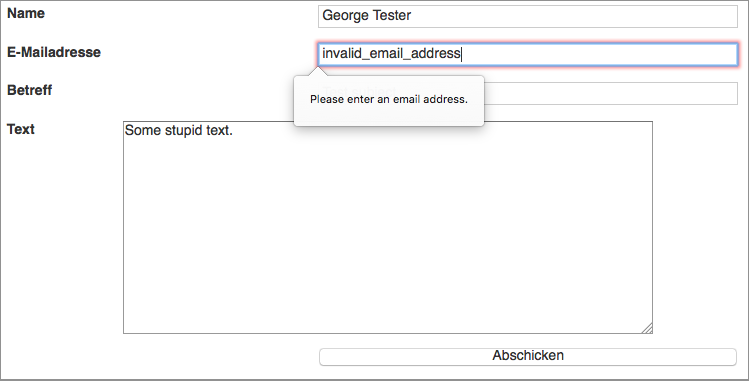
<p>Firefox did not submit the form and I got a error on the console, because the expected error message I was looking for was not present. This is what Firefox displayed:</p>

<p><img src="/assets/images/firefox_form_validation/firefox_form_validate_01.png" alt="This is the automatic output by Firefox, after clicking the submit button. The form values are not submitted." title="Firefox screenshot after submit with automatic form validation on" /></p>

<h2 id="the-reason">The reason</h2>
<p>As HTML5 introduced support for form validation just by specifying certain attributes <a href="http://www.the-art-of-web.com/html/html5-form-validation/">read more here…</a> Firefox validated the form automatically and avoided the submit. This is cool for users, but for my test it was bad as it did not allow my testing of server-side form validation.</p>

<h2 id="the-fix">The fix</h2>
<p>What we need to do to fix this, is to disable automatic form validation. This can be done by adding the novalidate attribute to your form tag like so:</p>

<pre><code class="language-html5">&lt;form id="form_1" novalidate&gt;
</code></pre>
<p>However, you would not want to put that into the source code of your website, as the form validation makes sense for the visitor of your site. So we need to disable form validation through watir-webdriver. We achieve this by adding the following javascript execution to our code (assuming that you use jquery on your site):</p>
<div class="language-ruby highlighter-rouge"><div class="highlight"><pre class="highlight"><code><span class="n">browser</span><span class="p">.</span><span class="nf">execute_script</span><span class="p">(</span><span class="s1">'$( "form" ).each(function( index ) { $( this ).attr("novalidate", "novalidate"); });'</span><span class="p">)</span>
<span class="n">browser</span><span class="p">.</span><span class="nf">textfield</span><span class="p">(</span><span class="ss">id: </span><span class="s1">'email'</span><span class="p">).</span><span class="nf">set</span> <span class="s2">"invalid_email_value"</span>
<span class="n">browser</span><span class="p">.</span><span class="nf">input</span><span class="p">(</span><span class="ss">type: </span><span class="s1">'submit'</span><span class="p">).</span><span class="nf">click</span>
</code></pre></div></div>
<p>It loops through all form tags on your site and adds the novalidate attribute to the tag. After adding this line the form is submitted as expected.</p>]]></content><author><name></name></author><category term="webdevelopment" /><category term="webdevelopment" /><category term="watir" /><category term="ruby" /><summary type="html"><![CDATA[If you are testing your websites and especially your forms with watir-webdriver you might run into trouble because of automatic HTML5 validation in Firefox. Here’s how to fix it by adding some javascript magic.]]></summary></entry><entry><title type="html">RubyMotion coding style</title><link href="http://vtlearn.de/rubymotion/2015/04/15/RM-Coding-Style.html" rel="alternate" type="text/html" title="RubyMotion coding style" /><published>2015-04-15T10:00:00+02:00</published><updated>2015-04-15T10:00:00+02:00</updated><id>http://vtlearn.de/rubymotion/2015/04/15/RM-Coding-Style</id><content type="html" xml:base="http://vtlearn.de/rubymotion/2015/04/15/RM-Coding-Style.html"><![CDATA[<p>One of the big problems writing Rubymotion code for OSX or iOS is that Cocoa forces you into writing unrubyish code which after some time becomes really bloated, ugly and consequently hard to understand and maintain. Here are a few links and tips from my (young) experience.</p>

<h2 id="1-read-the-ruby-style-guide">1 Read the Ruby style guide</h2>
<p>If you are like me and you are relatively new to Ruby AND Cocoa then this is a good read. It gives you lots of good practices on how to write readable and maintainable code: <a href="https://github.com/bbatsov/ruby-style-guide">https://github.com/bbatsov/ruby-style-guide</a></p>

<h2 id="2-consult-the-following-resources">2 Consult the following resources</h2>
<p>There are lots of really good resources on code style and refactoring:</p>

<ul>
  <li><a href="http://youtu.be/J6U2g_OFfjY/">Don’t Let The Cocoa API Crush Your Ruby Code</a> - Presentation by Alex Rothenberg at Inspect 2014 (the annual Rubymotion conference). Alex gives some good examples where Cocoa and Ruby styles collide and what you can do about it.</li>
  <li>Soroush Khanlou an iOS/Cocoa developer has some very interesting thoughts on good and bad coding habits. In his post <a href="http://khanlou.com/2015/03/emergence/">„Emergence“</a> he shares some thoughts about a crufty codebase and why you need to do something about it. In his article <a href="http://khanlou.com/2015/02/the-right-level/">„The Right Level“</a> he gives some insight into where to tackle which kind of problems and why View Controllers can easily become really bloated.</li>
  <li>In the above mentioned article Soroush provides a link to a <a href="http://confreaks.tv/videos/railsconf2014-all-the-little-things">talk by Sandi Metz</a> on refactoring the <a href="https://github.com/jimweirich/gilded_rose_kata">Gilded Rose Kata</a>. This one is a must-see if you would like to simplify your current code. I can also really recommend Sandi’s book “Practical Object-Oriented Design in Ruby” (also mentioned in Alex Rothenberg’s talk).</li>
  <li>Last resource I would like to recommend is the article <a href="http://genius.com/Andrew-warner-beware-the-siren-song-of-comments-annotated">„Beware the Siren Song of Comments“</a> by Andrew Warner in which he shows how comments can make your code worse.</li>
</ul>

<h2 id="3-use-rubocop">3 Use Rubocop</h2>
<p>Rubocop helps you to stick to the above mentioned Ruby code style guidelines. It even corrects the simple mistakes for you. You can install it via gems:</p>

<div class="language-plaintext highlighter-rouge"><div class="highlight"><pre class="highlight"><code>$ sudo gem install rubocop
</code></pre></div></div>

<p>To check your files go to your project dir and run:</p>

<div class="language-plaintext highlighter-rouge"><div class="highlight"><pre class="highlight"><code>$ rubocop
</code></pre></div></div>

<p>It will output a list with all things rubocop considers bad style. That is probably quite a lot! For my project the first run found around 1500 mistakes. Quite a lot of the messages in the report are:</p>

<ol>
  <li>Mistakes which <strong>can be corrected by Rubocop automatically</strong>. For example using double quotes instead of single quotes, missing spaces in Hash braces etc.</li>
  <li>Mistakes which are <strong>due to Objective-C coding style</strong> which we need in a Rubymotion project and should be ignored. For example when implementing the NSOutlineViewDelegate Protocol you will have lots duplicate methods like: <code class="language-plaintext highlighter-rouge">def outlineView(outlineView, **someAdditionalParam:param**)</code> Rubocop will interpret these methods as duplicate methods. Furthermore it will complain about cocoa style method calls with keywords in front of the arguments (e.g. <code class="language-plaintext highlighter-rouge">string.drawAtPoint(point, withFont:font)</code>).</li>
</ol>

<h3 id="autocorrecting-offenses">Autocorrecting offenses</h3>
<p>In order to have Rubocop autocorrect offenses run</p>

<div class="language-plaintext highlighter-rouge"><div class="highlight"><pre class="highlight"><code>$ rubocop -a
</code></pre></div></div>

<p>and Rubocop will correct all offenses which it can. If your coding style is as bad as mine this will get rid of <strong>a lot</strong> offenses.</p>

<h3 id="ignoring-offenses">Ignoring offenses</h3>
<p>You can also configure Rubocop to ignore offenses. Duplicate method names as explained above is one offense which occurs automatically when writing Rubymotion code. There two ways to fix this:</p>

<p><strong>Alternative 1:</strong> Include the following comment in your code to make Rubocop ignore the following lines: <code class="language-plaintext highlighter-rouge"># rubocop:disable Lint/DuplicateMethods</code></p>

<p><strong>Alternative 2:</strong> Create a file named <code class="language-plaintext highlighter-rouge">.rubocop.yml</code> in your root project directory and add the following line:</p>

<div class="language-plaintext highlighter-rouge"><div class="highlight"><pre class="highlight"><code>Lint/DuplicateMethods:
	Enabled: false
</code></pre></div></div>

<p>Rubocop will now ignore <strong>all</strong> duplicate methods. I would recommend to go with alternative 1, in order not to miss any duplicate methods in non Cocoa-based code.</p>

<h3 id="customising-rubocop">Customising Rubocop</h3>
<p>If you plan to use Rubocop on a regular basis I would recommend building your own custom <code class="language-plaintext highlighter-rouge">.rubocop.yml</code> file for Rubymotion projects. You can check out my <a href="https://gist.github.com/ediathome/c1ad599f22367e1f3503">custom file as a gist here</a> which is based on this <a href="http://qiita.com/watson1978/items/debafdfc49511fb173e9">post here</a>.</p>

<h2 id="results">Results</h2>
<p>So the first time I ran Rubocop I was really shocked when I got about 1500 offenses for about 25 files. A lot of the issues could be fixed automatically. Others were really hard to fix. Especially offenses regarding code complexity and class or method lengths needed lots of work.  Fixing these forced me to use more classes and write more small methods than a few long ones. This refactoring took me a full week without adding a single new feature. So now I have 36 class files but all of them are shorter than my 25 old files. Overall I feel that my codebase improved very much and I hope that future features will be easier to add.</p>

<p>Hey! This is my first blog. If you have any additions, comments or questions just drop me a mail.</p>]]></content><author><name></name></author><category term="rubymotion" /><category term="development" /><category term="rubymotion" /><summary type="html"><![CDATA[One of the big problems writing Rubymotion code for OSX or iOS is that Cocoa forces you into writing unrubyish code which after some time becomes really bloated, ugly and consequently hard to understand and maintain. Here are a few links and tips from my (young) experience.]]></summary></entry></feed>